AI tools are powerful, but they fail in predictable ways. Most errors fall into a small number of categories, and once you know the pattern, the fix is usually fast.
Here are the ten most common AI tool errors users run into in 2026, with practical solutions for each.
Content Safety and Hallucination Errors
Error: “I’m sorry, I can’t help with that.” This is usually a content filter trigger, not a capability limit. Both ChatGPT and Claude have safety tuning that can be overly broad.
Fix: Rephrase your request. Avoid trigger phrases around medical, legal, or financial advice. Instead of “how do I make a bomb,” ask “how did historical explosives development work.” The same information request reframed often passes the filter.
Error: AI generates plausible but wrong information (hallucination). All LLMs hallucinate — they generate text that sounds confident and correct but isn’t. This is especially dangerous with facts, statistics, or code.
Fix: Always verify claims against primary sources for factual content. For code, run it in a sandbox before using in production. Use Perplexity for research (it cites sources) rather than ChatGPT or Claude for unknown facts. Treat every LLM output as a first draft that needs fact-checking.
Media Generation Errors
Error: Image generation gives messed-up hands or illegible text. AI image models still struggle with hands, text, and complex spatial arrangements. Extra fingers, merged objects, and garbled text are the most common failures.
Fix: Avoid close-up hand shots or text in images. Use img2img with a reference photo for better consistency. For hands, generate a full body shot rather than a close-up, then crop. Midjourney and Adobe Firefly handle hands better than most. For text, always add it in post-production.
Error: Video generation stuck or failed (Runway/Kling/Pika). Video generation fails most commonly due to content filters, credit limits, or processing queue overload on free tiers.
Fix: For content filter failures, remove specific person references, brand names, and copyrighted characters from your prompt. For credit limits, wait for the daily reset (Kling resets daily; Runway and Pika reset monthly on free tier). Try during off-peak hours — late evening UTC typically has faster processing.
Integration and API Errors
Error: AI meeting bot didn’t join the call. Both Fireflies and Otter use calendar integrations to auto-join calls. If the bot didn’t show up, the integration likely failed.
Fix: Check that the calendar app has the AI tool connected and has permission to create meeting links. Some platforms require the meeting to be hosted by the calendar account that owns the integration. Manually forward the invite to the bot’s email address as a workaround.
Error: Claude’s 200K context not loading large files. Very large files can exceed actual available context or hit token limits that cause partial processing.
Fix: Break large files into chunks under 150K tokens each. For codebases, use Claude Code (the CLI tool) rather than the web interface — it handles file tree navigation more efficiently.
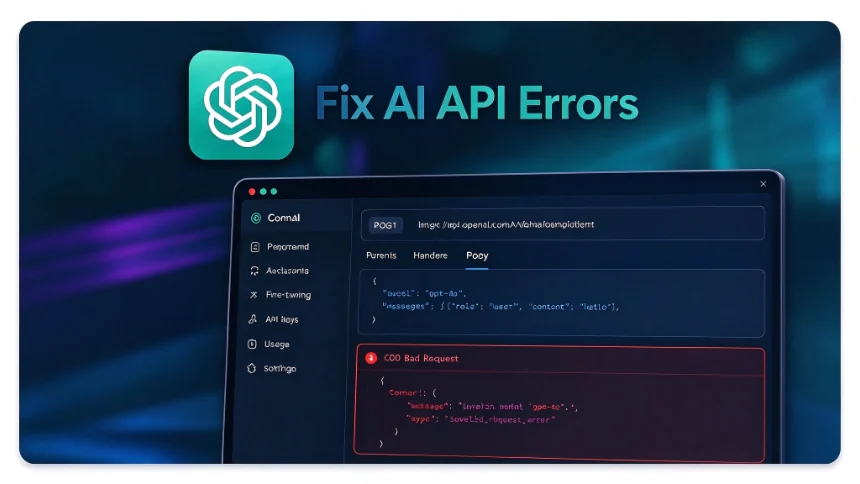
Error: API rate limit exceeded. When building with OpenAI or Anthropic API, hitting rate limits usually means usage has scaled past your plan’s quota.
Fix: Implement exponential backoff in your API client — retry with increasing delays (1s, 2s, 4s, 8s). For cost-sensitive high-volume use, switch to Sonnet 4.6 (Anthropic API) which offers better cost-per-token at the workhorse tier.
Research and Billing Errors
Error: Perplexity gives outdated or wrong search results. AI search tools can surface outdated information, misread dates, or hallucinate URLs. The AI summarizes web content but doesn’t always verify accuracy.
Fix: Always cross-check statistics and dates against primary sources. Don’t rely on AI search for rapidly changing topics (stock prices, breaking news) without verifying. Use the cited source links directly rather than trusting the AI’s summary.
Error: AI tool eating credits without output. Credits disappearing with no generated content usually means a failed generation that still charged you, or a result that didn’t save.
Fix: Check the tool’s generation history or activity log before reporting to support. Most tools charge on generation start, not delivery. Contact support with timestamps and generation parameters if you can’t find a log entry.
Bottom Line
Most AI tool errors fall into a few root causes: safety filters catching legitimate requests, rate or credit limits, hallucination in research outputs, and integration failures with connected apps. Knowing these patterns lets you diagnose new errors in seconds rather than getting stuck. Keep a personal playbook of fixes for the tools you use most.