If you’ve ever wished you could listen to a research paper the way you’d listen to a podcast, Google NotebookLM’s Audio Overview feature gets you close. Upload a PDF, and the tool generates a realistic two-host conversation that walks through the material — no reading required.
This guide covers exactly how the workflow works, what it does well, where it falls short, and how to get the most out of it.
What Is NotebookLM Audio Overview?
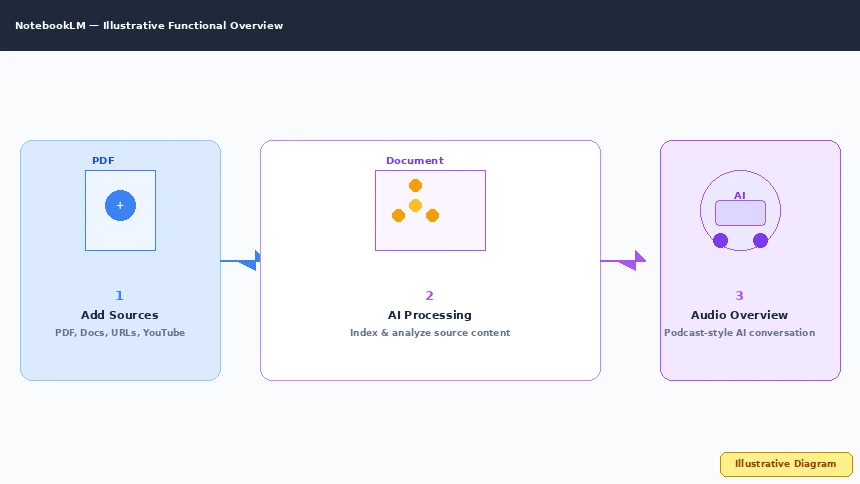
NotebookLM is Google’s free AI research tool built on Gemini. You give it source documents — PDFs, Google Docs, web links, YouTube videos, or plain text — and it can answer questions, generate summaries, and create study materials from them.
Audio Overview is one of those output formats. It takes your uploaded sources and produces a simulated podcast conversation between two AI hosts. The hosts walk through your material, highlight key points, and connect ideas — roughly in the style of a casual explainer podcast.
The feature launched in September 2024 and has since expanded significantly. As of 2025, it supports more than 50 output languages, so you can upload English documents and hear an overview in Spanish, French, or dozens of other languages. The underlying model was upgraded to Gemini 3.5 in mid-2026, which Google says improved response speed and naturalness.
Step 1: Get Access and Create a Notebook
Navigate to notebooklm.google.com and sign in with a Google account. The core experience is free; a paid NotebookLM Plus tier exists for users who need higher usage limits and collaborative features, but it is not required for the steps in this guide.
Once signed in, click New Notebook. Give it a descriptive name — this helps when you’re managing multiple projects. The notebook is where all your sources and generated outputs live.
Step 2: Add Your PDF as a Source
Click Add sources. You can upload files directly, paste a Google Docs link, or enter a URL. For this guide, we’re working with a PDF.
Drag and drop the file or use the file browser. NotebookLM will process the document — this usually takes between 30 seconds and a couple of minutes, depending on file size and server load.
Note on limits: early documentation cited per-document word limits in the hundreds of thousands. Google’s published material mentions users uploading up to 100 documents per notebook in mobile contexts. For long documents, processing time increases and output quality may vary. If you hit a wall with a very large file, try splitting it into sections.
NotebookLM accepts the following source types:
- PDF files
- Google Docs
- Web URLs
- YouTube video links (transcribed and indexed)
- Plain text files
Step 3: Wait for Processing and Start a Chat
After your PDF is indexed, you can immediately start asking questions in the chat panel on the right. NotebookLM’s answers are grounded in your source material — it will not pull in information from outside your documents.
This is worth noting: unlike general-purpose AI assistants, NotebookLM is a retrieval-augmented system. Every answer it gives cites specific sections of your source. That makes it a better research tool than a general chatbot for document-focused work, because hallucinations about your material are much less likely.
Step 4: Generate an Audio Overview
Switch to the Studio tab. You should see Audio Overview listed among the output options. Click Generate.
At this point a few options may appear:
- Output language: set this in Settings (top-right corner on the homepage) if you want a language other than English
- Customize: before generating, you can add a note to steer the hosts toward specific topics or a specific audience level — for example, “Explain this to someone with no background in biology”
Click Generate and wait. For typical documents, this takes a few minutes. Larger notebooks take longer.
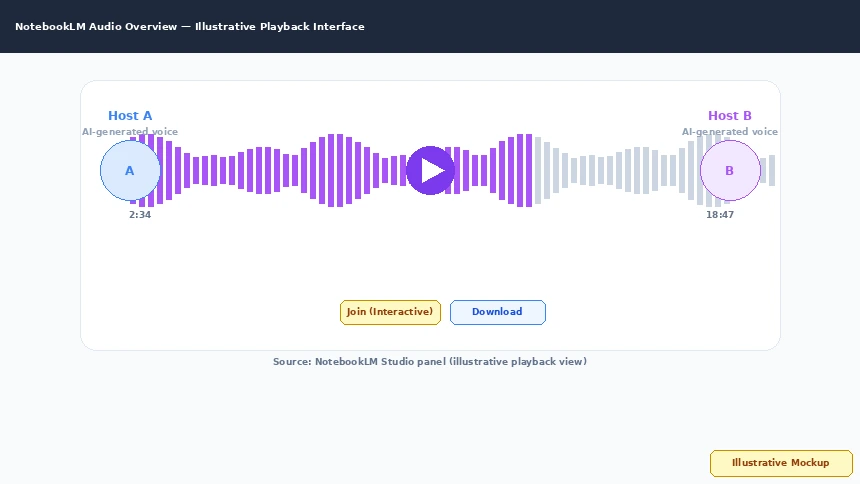
When it’s ready, the Audio Overview appears in your Studio panel. You can play it directly in NotebookLM, or download it as an audio file for offline listening. The download option is useful for commutes, workouts, or times when you can’t look at a screen.
Step 5: Join the Conversation (Interactive Mode)
In December 2024, Google added interactive Audio Overviews. While an overview is playing, you can click Join to pause and ask a question. The AI hosts will address your question within the context of the material and continue the conversation.
This is experimental. Google’s own documentation notes that interactive responses may be inaccurate and that interruption mid-conversation is a beta feature. Use it as a supplemental way to dig deeper, not as a reliable Q&A interface.
Step 6: Explore Other Output Formats
Audio Overview is one of several output formats NotebookLM can generate from your sources. Others worth trying:
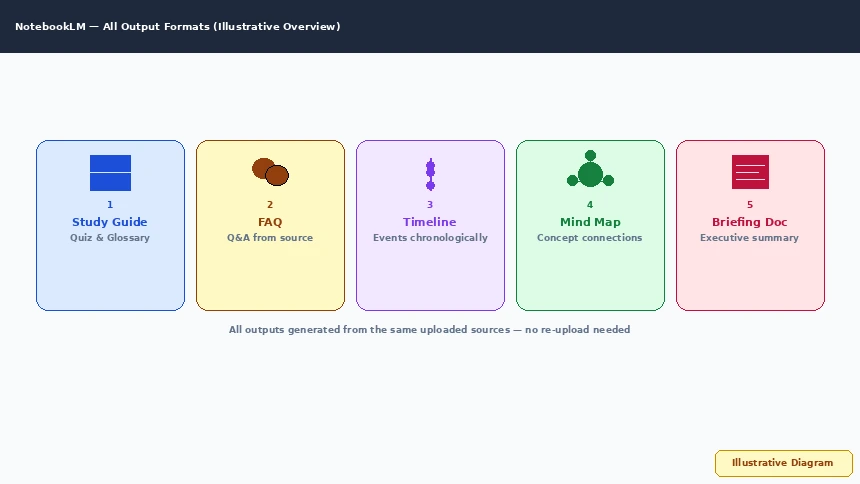
- Study Guide: structured outline with quiz questions and a glossary
- FAQ: auto-generated questions and answers from the source material
- Timeline: key events and milestones extracted chronologically
- Mind Map: visual diagram of how concepts connect
- Briefing Document: executive-style summary for quick review
These are all generated from the same set of sources, so you don’t need to re-upload anything to try a different format.
What Audio Overview Does Well
The feature works best when your source material is well-structured. A clear research paper, a detailed report, or a set of lecture notes will produce a more coherent podcast than a messy document with poor formatting or heavy formatting artifacts.
Good use cases:
- Long PDF articles you don’t have time to read in full
- Research papers with a clear argument structure
- Business reports you need to brief a team on quickly
- Study materials you want to review while commuting
The language support is a genuine advantage. Uploading English-language papers and generating an Audio Overview in another language is useful for multilingual professionals and language learners.
Where It Falls Short
Audio Overview has real limits.
First, it flattens complexity. A nuanced argument becomes a simplified conversation, and subtle distinctions can get lost. If you need precision — in legal documents, highly technical papers, or material where the exact wording matters — the audio overview is a poor substitute for reading.
Second, the hosts add content. The AI hosts don’t just summarize; they interpret, connect, and occasionally generalize. Google’s documentation acknowledges this. For some audiences, that conversational framing is helpful. For others, it’s noise.
Third, the interactivity is unreliable. The Join feature is genuinely useful but inconsistent. Google’s own guidance is that it may produce inaccurate responses, particularly on specialized or technical topics.
Fourth, very long documents challenge the feature. If you’re working with a textbook chapter or a 100-page report, the resulting overview may feel cursory in places. Splitting large documents into focused sections and generating separate overviews for each tends to produce better results.
Tips for Better Audio Overviews
- Start with 1–3 focused documents. NotebookLM works best when the material is coherent and limited in scope.
- Use the Customize field. Telling the hosts who the audience is or what to focus on meaningfully changes the output.
- Regenerate if the first version doesn’t land. Each generation is different. Two or three attempts are often worth it.
- Clean up your PDFs first. Documents with heavy formatting artifacts, scanned images instead of text, or poor structure produce lower-quality overviews.
- Match the format to the goal. Audio Overview is for listening. If you need to reference specific details later, use the Briefing Document or Study Guide instead.
Is It Worth Using?
If you regularly work with long documents and wish you could absorb them while doing something else, Audio Overview is one of the better implementations of that idea currently available. It is free, runs in a browser, and requires no technical setup.
The quality is surprisingly good for what it is — the voices are natural, the pacing is reasonable, and the hosts stay on topic. But it is not a replacement for reading, and treating it as one will lead to missed nuance.
For students, researchers, and professionals who need to process a high volume of written material, it is worth building into a regular workflow. For work that requires precision or cites specific wording as evidence, stick with the source document.
Getting Started
Visit notebooklm.google.com, sign in with a Google account, and upload your first document. The Audio Overview feature is available immediately with no additional setup. If you have a PDF you’ve been meaning to read but haven’t had time for, this is a practical place to start.