
Lots of people open Claude only for casual chatting, without touching its practical built‑in features. You can do far more than simple Q&A: edit documents, process uploaded files, build editable work items, and organise your whole project context inside one workspace. This guide walks through core real‑world functions of Claude, plain and hands‑on. No fluff.
When you first land on claude.ai after logging in, you see the main chat workspace. The central input box is where you submit prompts. Left sidebar holds new‑chat button, chat history, and entry points for advanced functions. Bottom area shows your recent conversations for quick re‑access.
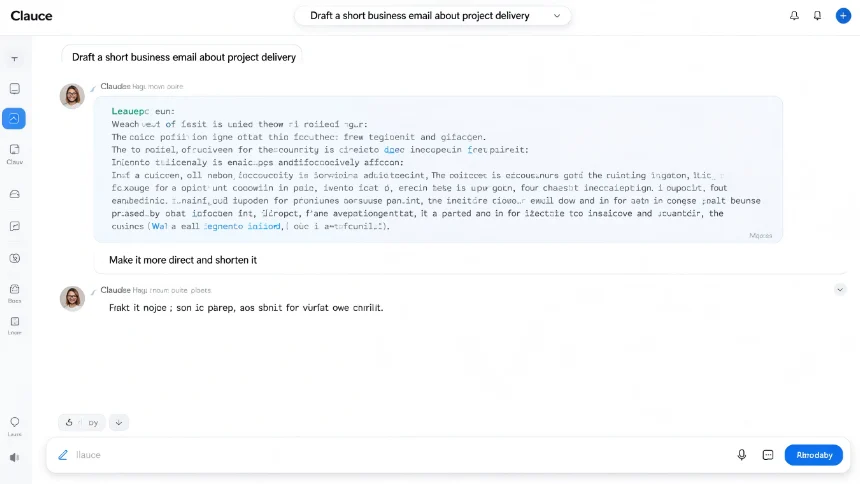
You don’t need perfect prompts on the first try. Iterative back‑and‑forth is the normal workflow. Write a first draft such as business email, then give follow‑up instructions to adjust tone, rewrite sections, swap details or shorten content. You can tweak partial outputs without restarting the whole conversation. Once satisfied, copy results directly for external use.
Upload files for summarization & deep questions
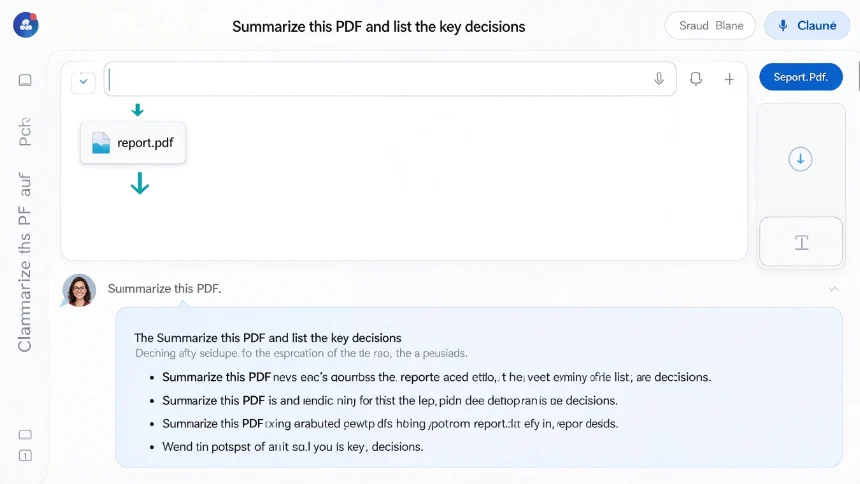
One of Claude’s most used daily features is file processing. You can drag‑and‑drop PDFs, spreadsheets and documents straight into the chat window, or click the plus‑sign upload button.
After uploading your file, state your goal: extract key takeaways, summarise full content, or ask targeted questions based on the document. Claude reads the attached material and answers strictly from your uploaded source. This saves you from reading long dense reports manually.
Work with Artifacts: editable output workspace
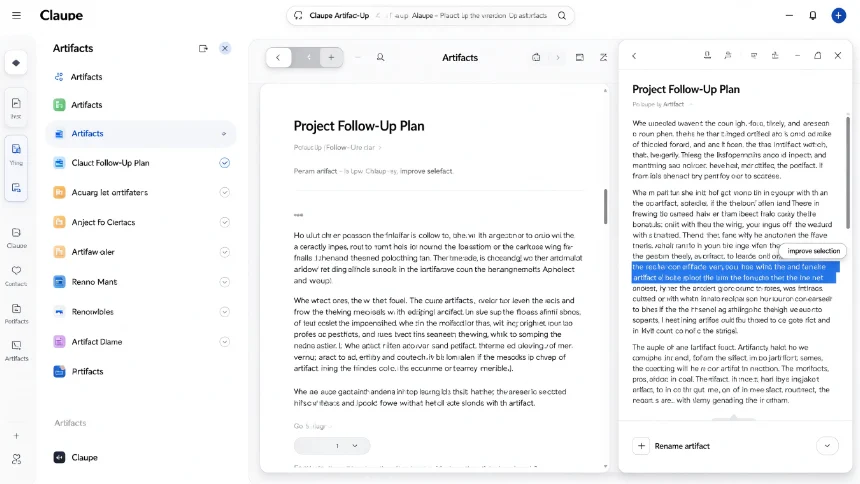
Artifacts is a standout native feature of Claude. Instead of locking all content inside chat bubbles, Artifacts spawn independent editable workspaces for documents, templates, simple web pages and more.
You trigger it by requesting to create a document / plan / template. Claude first shows you a high‑level outline for confirmation, then opens the artifact panel. Inside this separate workspace you can: ‑ Ask for full‑text rewrite, shorten or expand content ‑ Add brand‑new sections ‑ Highlight specific paragraphs, use “improve” function to rewrite only selected parts, without altering the rest of your document
This partial‑edit capability is very useful for iterative drafting. You can rename each artifact for easy identification.
Keep everything organised with Projects
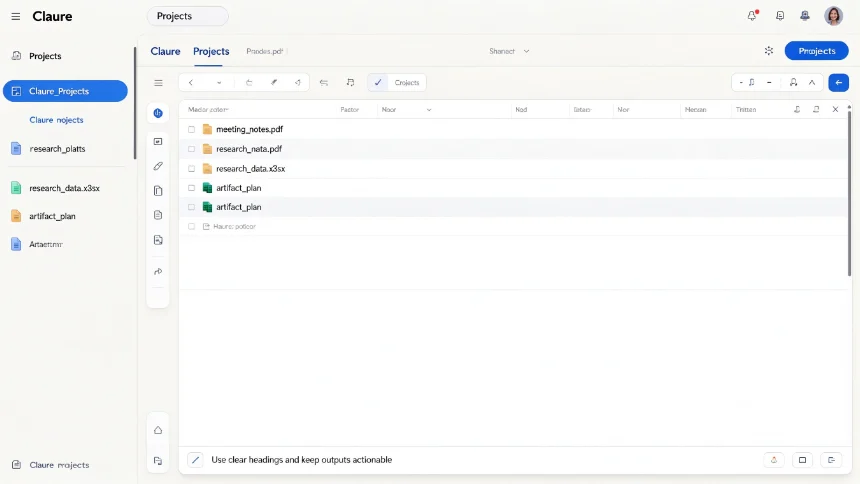
When you generate multiple artifacts, upload many reference documents, and accumulate related chats, things get messy. Projects solves this organisation problem.
Within a Project space you can:
- Import artifacts you have created
- Drag‑and‑drop reference PDFs and research files into project knowledge
- Save custom global instructions that automatically apply to every conversation inside this project
- All chats, files and editable documents stay grouped together. Claude can cross‑reference every resource stored inside the project when responding.
You no longer need to jump between scattered chat threads for one single piece of work.
Connectors and Skills for advanced workflows
Two more powerful tools for regular heavy users: Connectors and Skills.
Connectors allow Claude to link to external services: email, calendar and cloud file resources. It can scan your incoming emails, flag urgent items and pull information from connected sources. This is optional for beginners; you can start without enabling connectors.
Skills store reusable sets of instructions and workflows. Once you build a skill for recurring jobs like email drafting or spreadsheet analysis, you can activate it anytime instead of re‑typing long prompts repeatedly.
Closing thoughts
Most users only scratch the surface of Claude by just sending text prompts. File uploads, Artifacts, Projects, Skills turn it from a simple chatbot into a complete work environment. Start small: try uploading one document, generate your first artifact, then experiment with a simple project space. Small practical testing beats theoretical reading.