Most users only use Gemini Notebook to upload PDFs and chat. But it is far more powerful. Built‑in source citation, native Google Workspace integration and multi‑format generation can drastically speed up research, consulting and project work.
This guide breaks usage into three clear stages: Beginner, Intermediate and Pro. We use a real‑world consulting case — a wellness‑app startup project Health As Wealth — to walk through every capability.
Core advantage of Gemini Notebook
LLMs predict text patterns; they are not search databases. They can invent plausible‑sounding facts. Gemini Notebook solves this by letting you supply your own source materials. Every generated answer cites exact passages from your uploaded files, so you can verify outputs in seconds. It works with materials that no public AI has ever seen: meeting transcripts, internal financial reports, private notes and custom frameworks.
Beginner: Get started & basic workflow
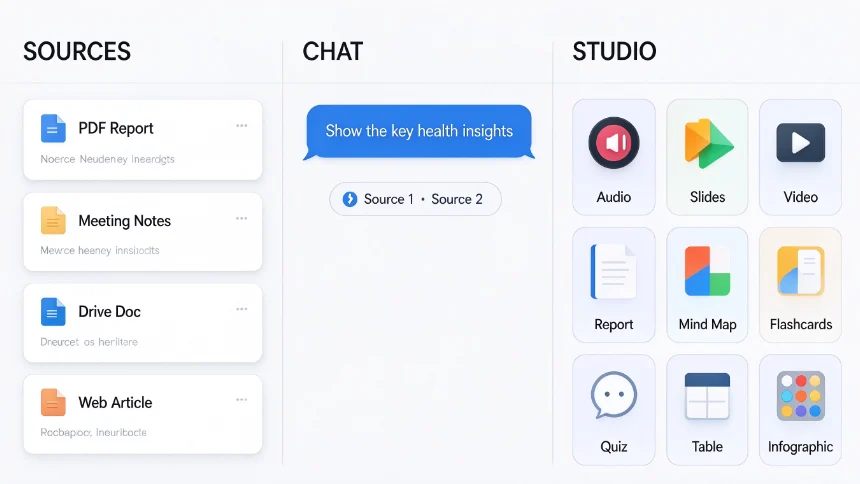
UI layout: Sources (left)|Chat (middle)|Studio (right)
Supported source inputs: ‑ Google Workspace files (Docs, Sheets, Slides) — auto‑sync when source file is edited inside Drive ‑ PDF research reports ‑ Web articles & web pages ‑ Photos of handwritten notes ‑ YouTube video transcripts
Key feature:Google Drive linked files update automatically. You do not need to manually re‑upload modified documents.
After loading sources, you can ask questions in the chat. Every reply attaches source citations for quick fact‑checking.
Studio provides 9 built‑in output types you can generate from your source pool:
- Audio overview (podcast‑style audio summary)
- Slide deck
- Video overview
- Structured report
- Mind map
- Flashcards
- Quiz
- Data table
- Infographic
Beginner tip:Do not dump every single file into one notebook for huge projects. We will cover better organization at the Pro stage.
Intermediate: Take control of sources, chat & outputs
1. Smarter source management
‑ Fast Research: Search inside your Google Drive by describing file content, no need for exact filenames or folder paths. Locate and import target documents directly into your notebook. ‑ Deep Research: Run web‑based deep‑research tasks inside the notebook; you can import the full research report as a new source.
2. Custom notebook chat config
Open Configure notebook. Three modes: Default / Learning guide / Custom. Custom mode lets you set fixed persona, output format, content restrictions for this notebook only. Settings persist inside the notebook, you do not need to repeat instructions in every chat message.
3. Unlock advanced output modes
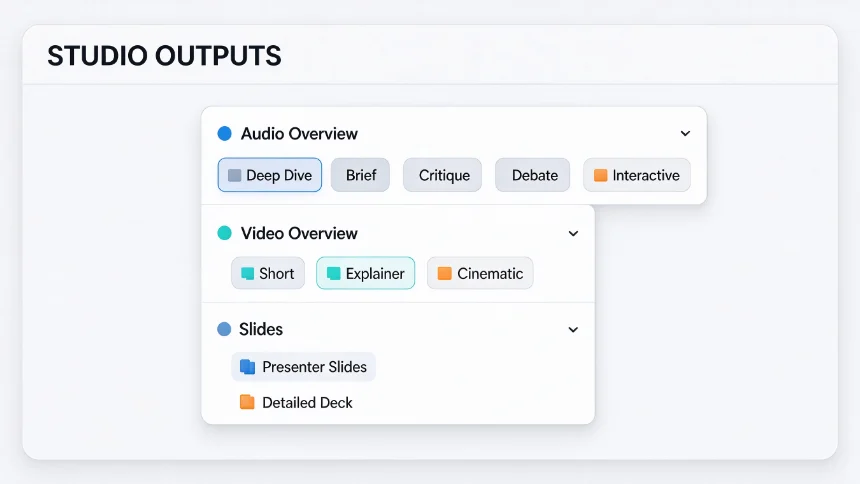
Most users only click the main generate button. Click the small arrow beside each Studio item to access sub‑modes.
Audio overview sub‑modes ‑ Deep‑dive: full detailed podcast summary ‑ Brief: short 2‑minute audio snapshot for commuting ‑ Critique: find argument gaps, weaknesses in your source materials ‑ Debate: simulate opposing stakeholder objections before presentations ‑ Interactive mode: you can ask follow‑up questions directly to the podcast‑style audio output.
Video overview sub‑modes ‑ Short ‑ Explainer (landscape, more detail) ‑ Cinematic (animated visual narrative)
Slide deck two distinct outputs ‑ Presenter slides: minimal text, for live on‑stage presenting ‑ Detailed reference deck: full context for stakeholders to read afterwards
Important export trick:Instead of clicking Studio buttons, describe your desired file format directly inside chat. You can request editable
.pptx,.xlsx(with formulas & multi‑sheets),.docx, markdown, SVG and more.
Pro‑level workflow: Connect to your existing work ecosystem
At the pro level, you stop treating each notebook as an isolated sandbox. You connect notebooks together and tie them into Google Workspace workflows.
1. Notebook organization with Collections
When a single notebook contains hundreds of mixed‑topic files, answers can become vague. ‑ Split content into multiple focused notebooks by topic. ‑ Use Collections (tag‑like playlists, not strict folders). One notebook can belong to multiple collections. For our demo case: create collection Health As Wealth and group all related notebooks.
2. Powerful source practices for ongoing team projects
‑ Import Google‑Meet meeting transcripts saved to Drive; metadata (attendees, timestamps) is preserved. Track how team decisions shift across months of meetings. ‑ Use consolidated running‑note documents: maintain one continuous Google Doc for stand‑ups & meetings, instead of generating many fragmented separate meeting files.
3. Cross‑notebook query & build reusable Gems
‑ You can attach multiple separate notebooks to one chat session and synthesize insights across all of them, without merging raw source files together. ‑ Build Gems: Custom reusable AI assistants. Define persona, tone, output rules, attach notebook collections as fixed knowledge‑base. Once saved, reuse the Gem in any chat, no repeated setup.
4. Beyond preset buttons: raw file generation
Not limited to Studio’s 9 menu items. From chat you can request to generate: ‑ Calendar .ics import files for Google Calendar ‑ SVG graphic assets ‑ Markdown / text / Python script files
For interactive dashboards which cannot export as local file: push notebook knowledge into Gemini Canvas to build interactive executive dashboards.
5. Automate with Workspace Studio
Build scheduled automated flows. Example workflow:
- Trigger: Every Monday morning
- Action: Call Gemini Notebook to extract this week’s action‑items
- Deliver result via Google Chat team notification.
Notebooks become persistent knowledge nodes inside your team’s automatic workflows.
Quick capability reference (Mobile‑friendly two‑column table)
表格
| Stage | Core Capabilities |
|---|---|
| Beginner | Multi‑format sources, Drive auto‑sync, cited answers, 9 Studio base outputs |
| Intermediate | Drive fast search, deep web research, custom notebook persona, advanced sub‑modes, direct chat file export |
| Pro | Collections, cross‑notebook synthesis, reusable Gems, raw file generation, Workspace Studio automation |
Closing thoughts
Most people only scratch the surface by uploading PDFs. Real power comes from structured source management, custom configuration, exporting proper editable files and connecting notebooks to your existing Google Workspace stack. Start small: first master intermediate‑level controls, then move into pro‑level organization and automation for recurring team & consulting projects.