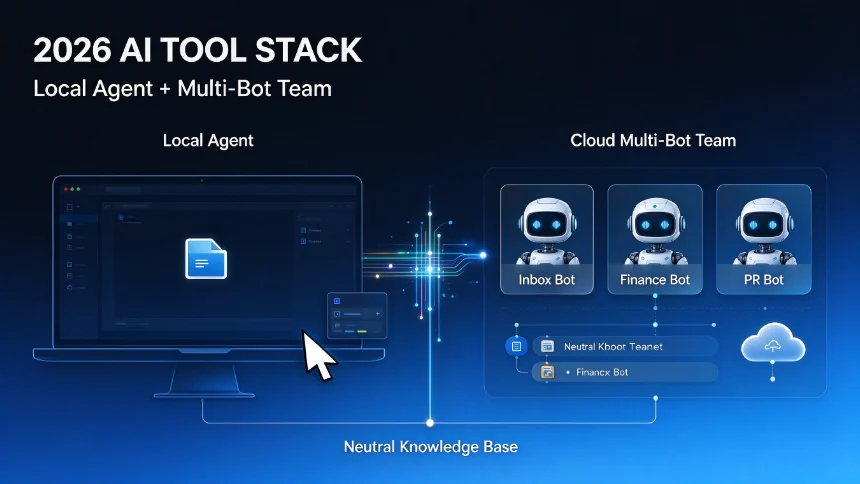
The real power of AI tools comes from what they do when connected together. A single AI tool handles one task. A connected system of AI tools handles a workflow while you are in a meeting. No-code automation platforms have made this accessible to non-developers — you can connect an AI model to your CRM, your email, your database, and your calendar without writing a line of code.
This guide covers how no-code AI automation works, what the main platforms offer, and how to design workflows that actually save time.
What No-Code AI Automation Actually Means
No-code AI automation means connecting AI tools through a visual workflow builder where you define triggers, actions, and conditions rather than writing integration code.
A trigger starts the workflow — a new email arrives, a form is submitted, a calendar event starts, or a scheduled time arrives. An action moves data to or from a tool — send a Slack message, create a Notion page, add a row to a spreadsheet. An AI step sits in between: Claude reads the incoming email, decides what kind of request it is, and drafts a response.
The key platforms in 2026:
Zapier is the most established. It connects over 6,000 apps including OpenAI, Anthropic Claude, Google Gemini, and most SaaS tools. Its native AI actions (AI Parser, AI Field, AI Translate) let you add AI processing into any workflow without writing code.
Make (formerly Integromat) offers more granular control than Zapier. It lets you build complex branching logic visually, run multiple AI operations in parallel, and handle error states with more sophistication.
Gumloop is designed specifically for AI workflow automation. Where Zapier and Make are general-purpose, Gumloop is built around AI-native flows: chaining multiple AI model calls, routing outputs between models, and running AI-in-the-loop decision trees.
Workflow One: Email to Actionable Notion Page
This is the most common use case for AI automation: an email comes in, AI reads it, and something gets created automatically.
Trigger: New email matching a filter (e.g., from a specific sender or with a specific subject).
AI step: Send the email body to Claude via the Zapier Claude integration or Make Claude module. Ask Claude to extract: the request type, the key information, any deadline, and a suggested action.
Action: Create a Notion page with the extracted information in a structured template. Add the page to the relevant database, assign it a tag based on the request type, and set a reminder based on the deadline.
The result: every inbound email becomes a tracked Notion task without manual entry. A request that would have taken five minutes to log takes thirty seconds to confirm.
Workflow Two: Form Submission to AI Triage and CRM Entry
Trigger: New submission in Google Forms, Typeform, or HubSpot.
AI step: Send the form responses to Claude. Ask it to categorize the lead, score it based on criteria you define, and draft a personalized first response.
Actions: Create the lead in HubSpot or Salesforce with the AI-extracted fields. Create a task in your CRM for follow-up, assigned to the appropriate rep based on the lead score. Send the personalized response to the submitter.
This workflow eliminates manual lead entry and ensures every form submission gets an intelligent first response within minutes, not hours.
Workflow Three: Slack Message to Multi-Step AI Research
Trigger: A message in a specific Slack channel containing a question or research request.
AI step (step one): Send the question to Perplexity or Gemini for an initial answer with sources.
AI step (step two): Take the Perplexity answer and send it to Claude for formatting into your company’s standard report template.
Actions: Post the formatted report to a designated Slack channel. Create a saved research record in Notion with the original question, the sources, and the formatted answer.
This turns a Slack question into a shareable, searchable research document in under a minute.
How to Design AI Automation Workflows That Hold Up
Most AI automation failures come from three sources:
Unclear success criteria. The AI does what you asked, not what you meant. Define the output format explicitly in your AI prompt within the workflow. “Extract the key information” produces unpredictable results. “Extract: company name, budget range (Low/Medium/High/Not stated), decision timeline (immediate/30 days/90 days/+90 days/none stated)” produces consistent results.
No error handling. When an AI step fails — wrong input format, API timeout, unexpected content — the workflow should notify you rather than silently passing bad data downstream. Build in a failure path: if the AI step fails, send an alert and halt the workflow pending review.
Over-engineering the first version. Start with the simplest version that captures 80% of the value. Automate the happy path first. Add exception handling and edge case logic only after the core flow is stable.
What to Automate and What to Leave Alone
AI automation is worth it when: the task is high-frequency, the inputs are structured enough to parse reliably, and the consequences of a wrong output are manageable.
Automate: email triage, form lead scoring, meeting note summarization, weekly report generation, CRM data entry, social media scheduling drafts.
Do not automate: strategic decisions, customer escalation responses, anything requiring legal or compliance review, anything you cannot afford to get wrong without immediate human review.
The threshold: if the AI produces a wrong output and it would take more time to fix than the automation saves, do not automate it yet.
Frequently Asked Questions
Q: Do I need coding skills to use these platforms?
No. Zapier, Make, and Gumloop are all visual drag-and-drop builders. You connect apps by selecting from a menu, not writing integration code. The AI step is typically a prompt field you fill in with natural language.
Q: Can these platforms handle sensitive business data?
Most enterprise plans offer SOC 2 compliance and data handling agreements. For highly sensitive data, check the platform’s data handling policy before connecting. Never put customer PII through an AI automation without verifying the platform’s data policy.
Q: How do I test an AI automation workflow safely?
Run it in staging mode first. Most platforms let you run a workflow with test data without triggering real actions. Use a small set of realistic test cases and verify the output before enabling the live trigger.