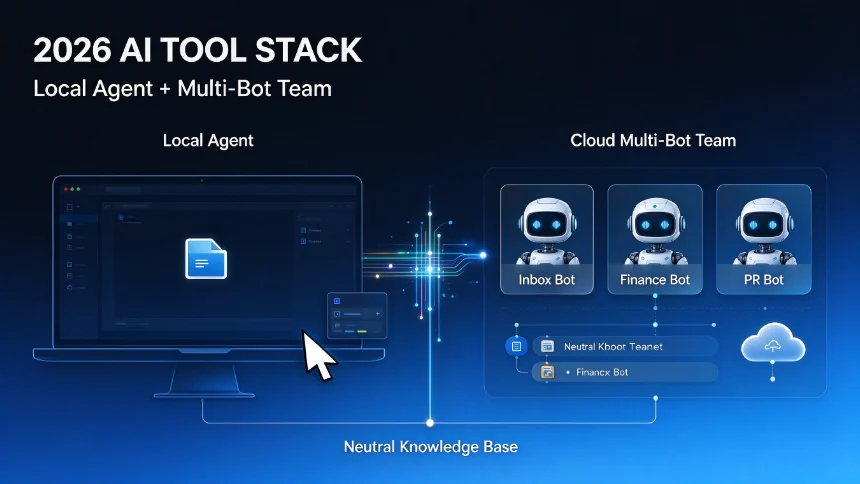
A lot of people toggle between ChatGPT, Claude Co‑work and other agent tools but still struggle to figure out exactly where ChatGPT‑Work fits inside daily business workflows. Built from the evolution of the old Codex desktop application, ChatGPT‑Work is OpenAI’s agent‑native working environment, available across web, desktop and iOS mobile clients.
It is important to tell apart two runtime modes first:
- Cloud Mode: Runs on OpenAI remote infrastructure. Chat history and generated artifacts sync across web, mobile, desktop cloud instance. Cannot directly read local files on your personal computer. This is what you get on web and iOS app.
- Local Mode (desktop‑only): Executes directly on your local machine. It gains access to local files and desktop software. But conversations here do not sync to web or mobile. Local mode inherits most capabilities from the former Codex app.
Many users get tripped up by this boundary: tasks you want to continue on your phone later should always run under cloud mode. Local mode is best for heavy file‑system work that must touch files stored on your PC.
1. Generate polished business documents & presentations out‑of‑the‑box
ChatGPT‑Work can research materials and generate complete deliverables without third‑party integrations. You can produce McKinsey‑style presentation decks, formal docx reports, PDF files and static HTML pages.
You can iterate directly on outputs: point to specific slide numbers, adjust colors, rewrite charts, tweak layout, and give voice‑based edit instructions on mobile. The agent runs extended background research, reads reference documents, and iterates multiple rounds until your visual requirements are satisfied.
2. Extend functionality via Plugins
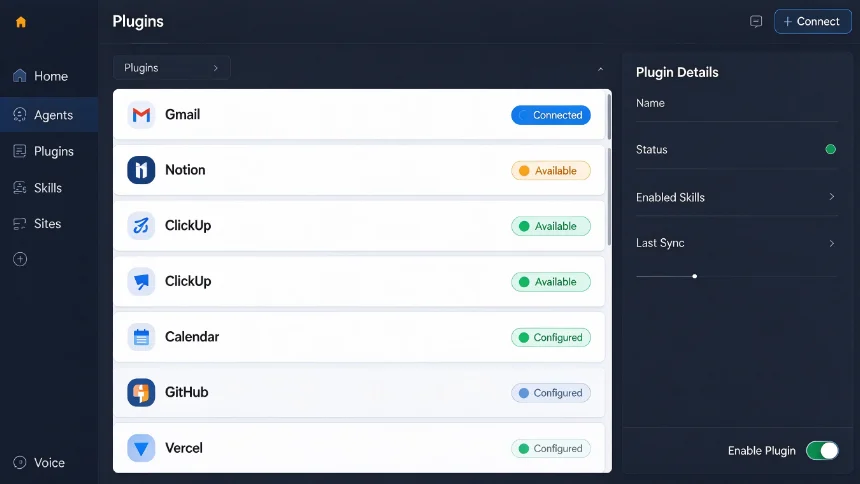
Plugins are official app connections that link Work to your existing SaaS stack: Gmail, Notion, ClickUp, Google Calendar, GitHub, Vercel and more. Each plugin ships with bundled built‑in skills.
You do not need to manually @‑mention plugins every single turn. Work automatically detects intent and invokes matching connected services. Real‑world business workflow example: read incoming emails from a contact, draft replies, schedule calendar events, edit Notion pages and set one‑off delayed automation tasks, all inside one continuous conversation.
Mobile clients share exactly the same plugin capability. You can start a task on desktop and continue operating connected business tools from your phone.
3. Interactive Blocks for mixed‑format output
Blocks are self‑contained editable output containers inside chat threads. Types include editable text blocks, email draft blocks, data tables, Mermaid mind‑maps, flowcharts, sequence diagrams and media containers.
You can edit content directly inside blocks, ask AI to apply revisions, compare version history, and full‑screen individual blocks for focus reading. All block types render normally on mobile iOS client. It removes the pain of copying text or chart screenshots back‑and‑forth between separate apps.
4. Build, preview and host websites via Sites feature
You can generate complete mini web applications inside Work. Generated Sites can be previewed inline within ChatGPT. For public deployment, connect Vercel plugin to push projects to public internet, and you can pair domain‑registration plugins to bind custom domain names.
This workflow works well for internal dashboards, demo prototypes and documentation sites, without opening separate local development environments.
5. In‑line image generation & fine‑grained image editing
Powered by built‑in image model. You can upload reference thumbnails or visuals, give granular edit instructions, add comment annotations pointing to specific areas on the graphic, generate multiple variants, and directly attach finished assets to emails through connected Gmail plugin.
Instead of generating an image and exporting it to another editor, most small‑batch graphic adjustments can finish entirely inside the Work thread.
6. Branching chats for parallel idea exploration
Use /branch‑chat command to fork an existing conversation into independent child threads. You can take one set of existing context and branch out into different deliverables: one branch for building web prototype, another branch for converting same material into PDF slide deck.
You can /pin important branches to top of chat list. Each branch focuses on one single objective, preventing one chat thread from getting cluttered with mixed goals.
7. Cross‑platform consistency: Cloud vs Local desktop runtime
Re‑iterate core practical rule: ‑ Cloud mode (web / iOS / desktop‑cloud): full cross‑device sync, no local file access. ‑ Local desktop mode: access local files and desktop apps, zero cross‑device sync.
Local mode can reuse custom skills originally built under Codex environment; these custom local skills are not available inside cloud mode. Cloud‑built skills, on the other hand, travel with you across web and mobile.
8. Native voice mode inside Work
Trigger voice chat session. With plugins connected, voice commands can operate Notion, read emails, edit documents, adjust page content — everything you do via text prompt can be driven hands‑free by voice input. You can review results directly in chat after spoken instructions.
9. Remote voice control from iOS to desktop Work
This is a highly under‑rated feature. From your mobile app’s Remote tab, you can establish connection to your desktop Work instance. Using real‑time voice, you are able to spin‑up brand new Work sessions on desktop while you are away from computer.
Common real‑life usage pattern: go out for a walk, give voice instructions on phone, spin‑up multiple background work sessions. When you return to desk, drafts, research outputs and pre‑opened browser tabs are already waiting for you.
10. Built‑in browser runtime
Work includes a full embedded browser session. You can import cookies and credentials so the browser stays signed‑into your business accounts. Create multiple tabs within one work session, open links directly inside embedded browser rather than external system browser. All browser activity belongs to the current task context.
11. Build reusable Skills
Skills are packaged instruction workflows. Two distinct categories: ‑ Local Skills: created inside desktop local mode, only usable on that local desktop environment, inherited from old Codex. ‑ Cloud Skills: authored under web / cloud mode. Sync to mobile, usable anywhere you sign‑into your account.
Do note the boundary: local skills cannot be invoked in cloud threads and vice‑versa. Many users run into confusion because they build custom local skills and expect to call them on mobile.
12. Scheduled & delayed background automation
Cloud‑mode scheduled tasks keep running regardless whether your computer is powered‑on. Local‑mode scheduled jobs halt once desktop application closes.
Practical business example: send an outreach email, set recurring check‑ins: check for replies every hour starting next morning. Once reply arrives, update Notion document and send notification email to your inbox. This kind of monitoring workflow only works reliably under cloud runtime.
13. Advanced spreadsheet generation & data analysis
Feed research materials or internal enterprise documents. Work can produce complex spreadsheets with multiple charts, dashboards and comparison tables. You can then push finished spreadsheets directly into Google Sheets via corresponding plugin.
14. Multi‑agent workspace for parallel multitasking
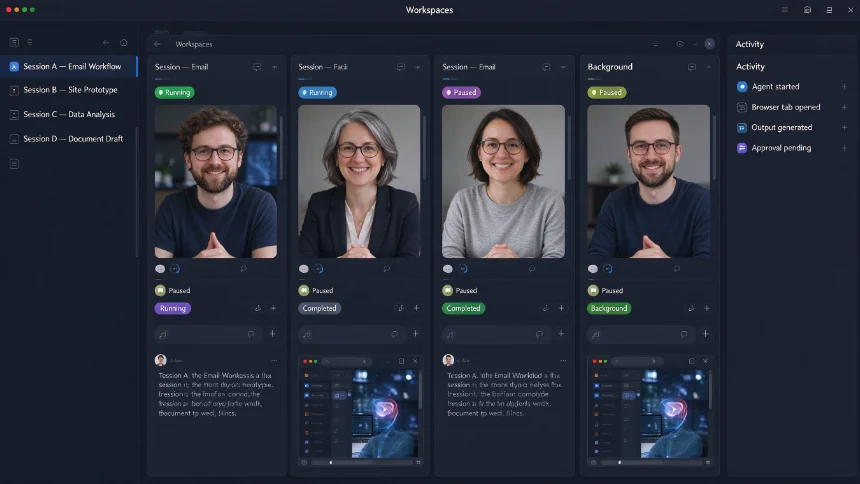
Open multiple independent Work sessions running in cloud mode side‑by‑side. Each session handles separate business tasks. You can jump between sessions, open embedded browser tabs for each task, and manage several ongoing projects concurrently.
Closing thought: The dividing line for getting value from ChatGPT‑Work is understanding mode boundaries: know what belongs to cloud, what belongs to local desktop. Match plugins, skills and scheduled automation to correct runtime environment. A lot of frustration comes from mixing‑up local / cloud capability boundaries.