Most people open Notion AI, type a question, and call it done. That’s the surface level. Notion AI is built to integrate directly into your knowledge management workflow — and when you use it that way, it changes how you handle meeting notes, project briefs, daily standups, and long-term documentation.
This guide covers the workflows that actually move the needle: not just “ask AI to write this,” but how to structure your Notion workspace so AI assistance compounds over time. If you’re already using Notion and haven’t systematized your AI use, this is where to start.
What Notion AI Actually Does in Your Workspace
Notion AI is a writing and analysis assistant that works within your existing Notion pages and databases. It reads your content, understands the context of your workspace, and generates text or summaries based on what’s already there.
Key capabilities:
- Summarize long pages or meeting notes into bullet points
- Generate first drafts, outlines, or rewrites from scratch
- Extract action items from notes and tag them as tasks
- Translate content while keeping formatting intact
- Answer questions based on the content of a specific page
What it doesn’t do: connect to the live web, access external documents, or function as a standalone chatbot. Everything it processes comes from your Notion workspace.
Setting Up Your Workspace for AI-Assisted Workflows
Before diving into specific use cases, structure your workspace so AI can work with context rather than isolated pages. This step is what separates useful AI assistance from generic outputs.
Create a dedicated AI command page. Reserve one page as your prompt template library. Store frequently used prompts here — ones you tailor for your role and projects. This means you’re not rewriting the same instruction each time.
Use consistent page structure. AI performs better when your pages follow predictable formats. For meeting notes: Date / Attendees / Agenda / Notes / Action Items. For project briefs: Overview / Goals / Timeline / Risks / Status. Consistency gives AI more to work with.
Connect related pages with linked databases. If you’re managing a project in one page and tracking tasks in another, AI can reference both. This matters for prompts like “summarize all open tasks across our sprint pages.”
Five Workflows That Actually Save Time
1. Meeting Notes to Action Items in Seconds
Traditional approach: manually extract action items from meeting notes and distribute them. With Notion AI:
- Open your meeting notes page
- Click the AI icon or type /AI
- Use the “Summarize” command to condense the notes
- Follow up with “Extract action items” to surface tasks and owners
- Use “Create task from selected” to add them directly to your project database
This workflow works best when your meeting notes follow a consistent template. The more structured the input, the more accurate the extraction.
2. First Drafts from Outline
Start with an outline rather than a blank page. Give Notion AI the structure you want — headings, key points, target audience — and let it generate a working draft. You then revise, fact-check, and refine.
Example prompt approach:
- Share the outline of what you want to cover
- Specify the tone (conversational, formal, concise)
- State the target audience (engineers, managers, general readers)
- Ask AI to generate the introduction and first two sections
This is faster than writing from scratch, and the output is easier to edit than restructuring a generic AI response.
3. Daily Standup Summaries Across a Team
If your team writes daily standup notes in Notion, use AI to generate a consolidated daily digest. Each team member maintains their own page; AI pulls across all of them and produces a single summary for the project lead or channel.
This requires a shared database or linked pages — but once set up, it replaces a manual daily standup report that no one reads.
4. Project Brief Generation from Context
When starting a new project, create a brief page with the key context: goals, stakeholders, constraints, timeline. Then ask AI to generate a structured project brief from those inputs — one that you can distribute to the team or use as a reference document.
This works because AI is reading your specific context, not generating generic content. The output reflects your actual project, not a template.
5. Knowledge Base Q&A for Onboarding
If you maintain a company wiki or process documentation in Notion, AI can answer questions from that knowledge base. New team members ask “how do we handle X?” and AI answers from the actual pages — rather than pinging a colleague who wrote it two years ago.
This use case requires your documentation to be reasonably complete and well-structured. AI can’t compensate for gaps in your knowledge base.
Where Notion AI Falls Short
Understanding the limits helps you decide when to use Notion AI versus a more capable tool.
It can’t browse the web. For research tasks or up-to-date information, you need a dedicated AI search tool. Notion AI only works with what’s in your workspace.
It has usage limits. The free plan gives you a limited number of AI commands per month. Heavy users will hit that ceiling quickly on the free tier.
It doesn’t maintain memory across pages. Each AI interaction starts fresh. If you want continuity, you need to paste relevant context into the current page first.
Formatting can be inconsistent. AI-generated content sometimes introduces formatting changes that don’t match your workspace template. Always review before publishing within a shared workspace.
Getting the Most Out of Notion AI
A few principles that hold across all workflows:
Be specific in your prompts. “Summarize this page” produces generic output. “Summarize this meeting into three bullet points for a senior engineer who didn’t attend” produces something actually useful.
Iterate, don’t regenerate. If the first output isn’t right, ask AI to revise a specific section rather than starting over. Building on the first draft is faster.
Treat AI output as a starting point. AI generates based on patterns and context. Your expertise, domain knowledge, and judgment still determine the final quality. AI is a multiplier for your existing workflow, not a replacement for it.
Build your prompt library over time. As you find prompts that work well for your role and projects, save them. After a few weeks, you’ll have a personalized toolkit that produces better outputs than generic commands.
Key Takeaways
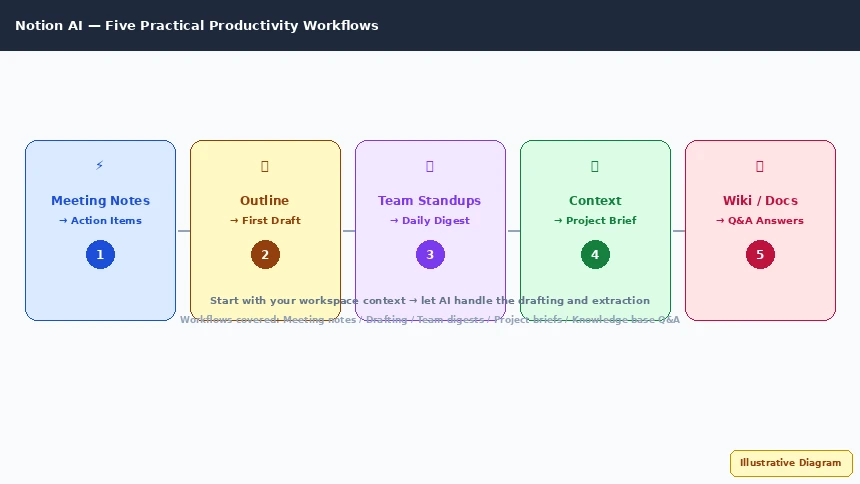
Notion AI is most powerful when embedded into an already-structured workspace. The payoffs are clearest in five workflows: meeting notes to action items, first draft generation, team standup digests, project brief creation, and knowledge base Q&A.
It works best when your pages follow consistent templates, your prompts are specific, and you treat the output as a starting point for your own editing rather than a finished product.
For teams already using Notion, integrating these workflows takes an afternoon. The time saved on documentation, summaries, and task extraction compounds quickly.