Manual video editing eats up massive amounts of working hours. Many creators still outsource subtitling, audio cleanup and background replacement to freelancers. VEED packs multiple native AI editing features inside one browser‑based editor, so you can finish most repetitive editing tasks without switching between separate apps.
This walkthrough covers practical everyday AI features available on VEED: auto‑generated subtitles, audio cleaning, video background removal, AI asset generation, AI voice‑over and eye‑contact correction. All functions run inside the browser, no heavy desktop editing software required.
Generate accurate AI subtitles
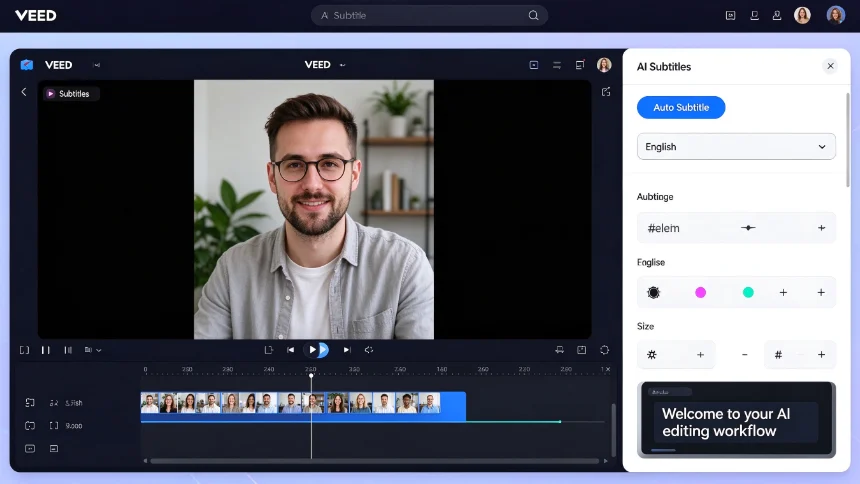
Manually writing and syncing subtitles is one of the most time‑consuming editing jobs. VEED’s AI subtitle tool transcribes your source video audio automatically.
Free plan limitation: auto‑subtitle generation only supports clips under 2 minutes. Longer footage requires a paid subscription. Operation steps:
- Upload your video file to the VEED timeline.
- Open the top‑menu
AI Toolsand select Subtitles. - Run
Auto Subtitle, pick your target language. Multi‑speaker podcast content is also supported. - Once transcription completes, adjust font, color and text styling for your video aesthetic. You are not limited to plain closed‑caption style; you can create bold stylized on‑screen captions.
You no longer need to send footage to virtual assistants or freelance transcribers. Subtitle creation finishes within seconds.
One‑click clean‑up for raw audio
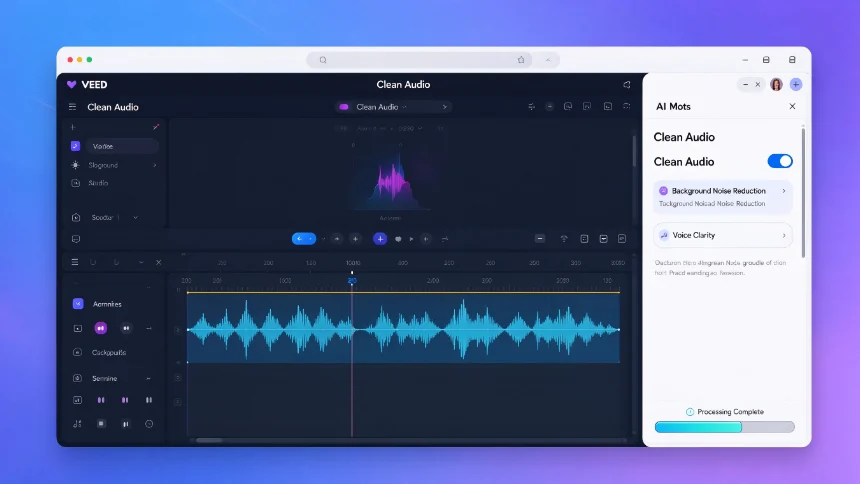
Raw field recording often carries unwanted background hum, fan noise or room echo. You do not need professional audio‑engineering knowledge to fix this.
Inside VEED AI Tools, enable Clean Audio. The model automatically detects and suppresses background noise, balances voice clarity. Just toggle the function switch, and the platform handles all audio processing work for you. No complicated equalizer or filter parameter adjustments.
Remove video background without green‑screen
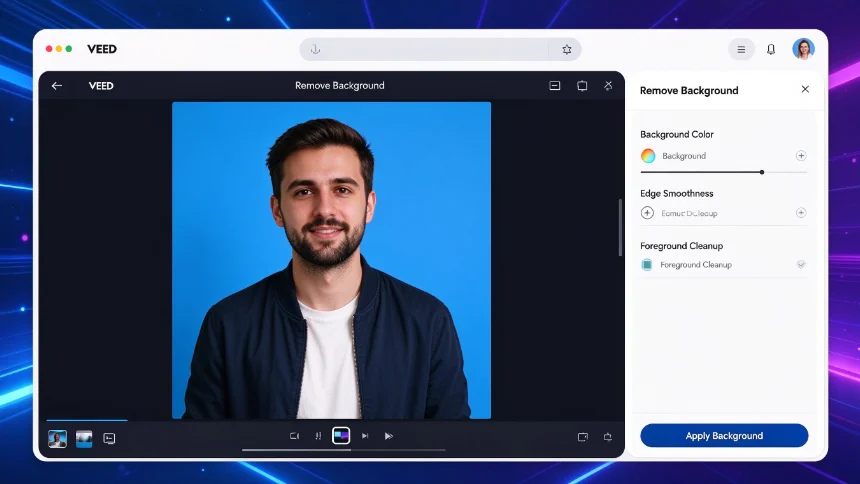
Traditionally, replacing video background needs physical green‑screen equipment and precise key‑frame work. VEED’s AI background‑removal algorithm cuts out human subjects directly from regular footage.
- Select your target clip on timeline.
- From AI tools menu choose Remove Background.
- Wait for AI processing to complete.
- Afterwards you can fill in solid‑color backgrounds, images or other B‑roll footage behind your cut‑out subject.
Inspect multiple frames to verify edge cut quality. For most talking‑head creator footage the masking result stays clean and usable.
Generate B‑roll images inside the editor
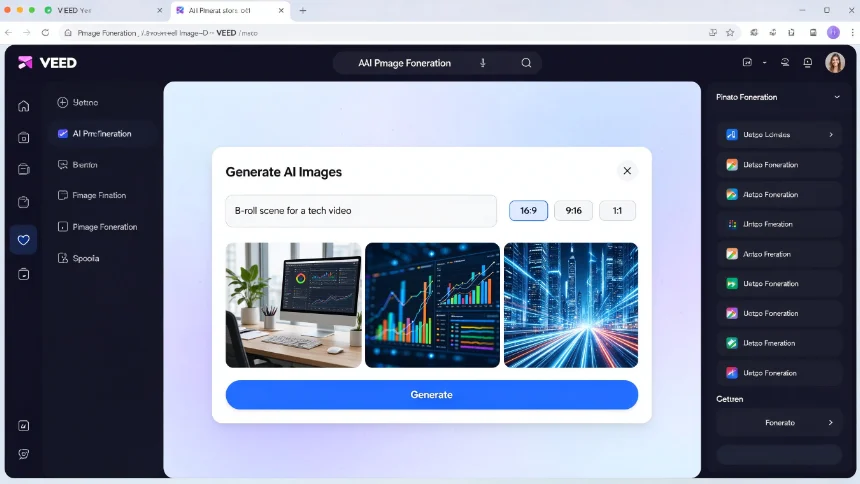
You can generate custom image assets directly inside VEED for B‑roll, backdrops or illustration materials, no need to jump to separate AI image websites.
- Open AI Tools → Generate → Images.
- Input detailed text prompt describing what visual you require.
- Adjust output aspect ratio to match your video project.
- Click generate. Download the finished asset and drag it straight onto your editing timeline.
This is very helpful when you need very specific scene visuals which you cannot find inside stock‑video libraries.
Create AI voice‑over narration
Recording voice‑over repeatedly is labor‑intensive: retake for mis‑spoken lines, post‑process audio files. VEED’s AI voice‑over lets you produce narration purely from text.
‑ Paste your finished script text ‑ Browse and select different synthetic voice profiles (male / female voices available) ‑ Preview playback to check tone and rhythm ‑ Insert generated voice track onto your timeline
Great for product demos, short explanatory clips when you cannot record live human voice.
AI Eye‑Contact correction
Eye‑contact correction is a relatively new AI editing capability. Many creators read scripts placed beside their camera, so their eyes keep looking away from the lens. This makes recorded footage feel disconnected for viewers.
VEED Eye‑Contact AI analyzes your existing footage and warps eye position in frames. It adjusts gaze so it visually appears you are looking straight toward the camera lens.
Common real‑world use case: Zoom‑style remote interview clips, teleprompter‑less talking‑head recordings. It cannot fix every clip perfectly, but delivers massive quality improvement for most creator footage.
Closing thoughts
These AI modules do not replace advanced fine‑cut editing. But they eliminate the bulk of repetitive, low‑value manual labour in your workflow. You handle creative decisions, and AI takes over mechanical tedious work.
Start small: try auto‑subtitles and audio cleaning on one of your existing clips, then gradually test background removal, image generation and eye‑contact correction according to your needs.