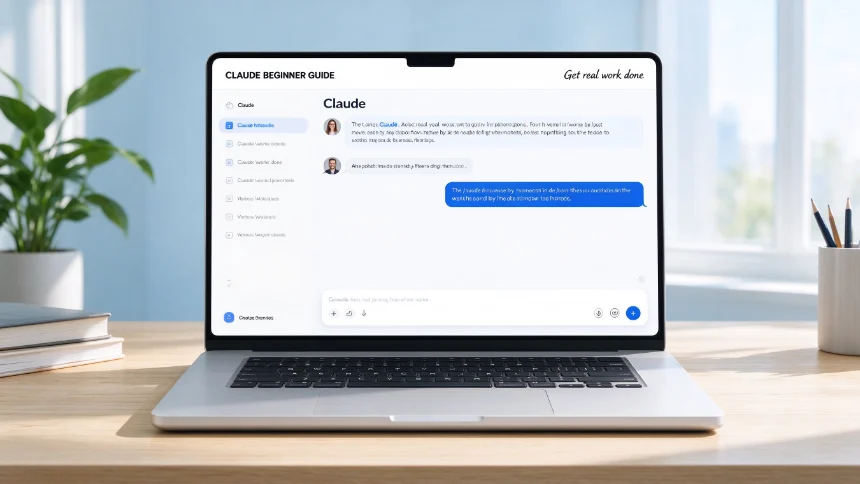
Most users only tap into roughly 10% of Claude’s real‑world capabilities even with an active paid subscription. These 10 actionable tips are sorted into beginner, intermediate and advanced tiers. Following them can help you build your personal Jarvis‑like assistant and drastically boost daily work efficiency.
Beginner‑level tips
Pick the right account email
Claude does not support changing the bound account email afterwards. Avoid using company‑provided emails. If you leave the organization, you may lose access to your whole conversation history, accumulated memory and long‑term usage records. Always use a permanent personal email when registering your Claude account.
Set up your personal memory
You can import memory data migrated from other AI tools inside Claude settings. The imported content tends to over‑represent work‑related information while lacking personal context. A better approach is to let Claude interview you. It will ask sequential questions covering your personal background, work scenarios, goals and working preferences. You can use voice input to reduce typing burden. This builds a customized baseline so you will not start from zero when switching to Claude.
Choose proper models for different tasks
Anthropic provides multiple model variants: Haiku, Sonnet, Opus and Fable. Treat them like different‑level team members. ‑ Haiku: For frequent back‑and‑forth conversations that do not demand deep reasoning. ‑ Sonnet: Your daily general‑purpose workhorse for regular analysis and thinking tasks. ‑ Opus: For heavy‑duty complex work: deep analysis, multi‑layer workflows. It consumes far more tokens. ‑ Fable: Top‑tier model with limited practical real‑world experience for most users.
Research Mode is not an independent model. It triggers broad web research and generates structured reports, yet it also heavily consumes usage quota. Always write precise requirements when enabling it. Do not leave it open for simple lightweight tasks.
Build and reuse Skills
Memory represents Claude’s gradual understanding of you. A Skill is fixed, reusable instruction set built for one repetitive job. Common use‑cases: weekly report formatting, LinkedIn post templates, converting meeting notes into action items. You can create your own Skills by describing your workflow, or download community‑shared Skill files and upload them in settings. Stack multiple Skills to automate your recurring tedious work.
Use Projects cautiously
Projects carry isolated, separate memory. Content inside one project cannot be accessed by regular chats or other projects. If you store your brand tone, writing style and personal baseline inside general chat, those settings will not apply within a Project. Over‑fragmenting conversations into many separate Projects forces repeated re‑explanation. It is acceptable to split broadly between work and personal. Avoid excessive subdivision. You can freely move chats in and out of Projects anytime.
Intermediate‑level tips
Connect core third‑party connectors: Gmail & Calendar
Link Gmail and Google Calendar inside Claude connectors. Claude can read your inbox and draft email replies for you, though it cannot send messages automatically. Always proofread before sending. With calendar access, Claude analyzes your schedule gaps. It can suggest suitable time slots for deep work, exercise or family arrangements, simulating part of a real personal assistant’s capability.
Make use of the Chrome Extension
Install the official Claude Chrome extension. It enables Claude to read webpages, fill forms and operate across tabs within your browser. Treat it like a new team member: assign tedious browser‑based tasks to it. It will pause and ask for confirmation before making changes to web content. Close sensitive pages such as banking before running tasks. Test with low‑risk scenarios first to get familiar with its behavior.
Advanced‑level tips
Master Co‑work
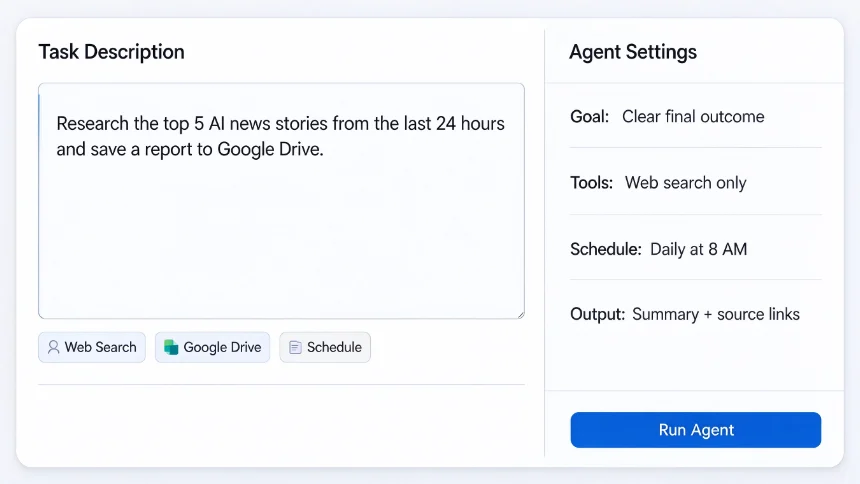
Co‑work grants Claude access to designated local folders on your computer. It can read, sort, create and edit local files after your approval. Typical example: let Co‑work clean up your messy downloads folder. Besides file operations, Co‑work supports scheduled automation. It can combine memory, Skills and connected apps. You can set morning routines: inbox categorization, review of yesterday’s progress and preview of today’s agenda, all completed automatically before you start working. The Dispatch feature lets you push tasks to your computer from your mobile phone via QR‑code pairing.
Try Claude Code
You do not need coding background to use Claude Code. Describe your requirements in plain natural language, and it writes, tests and fixes code for you. Real‑world example: non‑technical team members can build custom small applications tailored to personal hobbies or spreadsheet workflows, without relying on ready‑made third‑party software.
Experiment with Claude Design
Claude Design generates functional landing pages, website mock‑ups and page layouts instead of static images. Outputs contain clickable interactive elements. It is not strong at general image generation. For image creation, use other dedicated tools. If you frequently build prototypes or simple web pages, this feature can save you massive development time.
Once you adopt even half of these tips, you will move far beyond most casual AI users. Claude can handle repetitive trivial work, freeing your time for high‑value creative work, family or side‑project exploration.